 On Tech Stuff
Why Your iPhone Battery Drains Overnight (and How to Stop It)
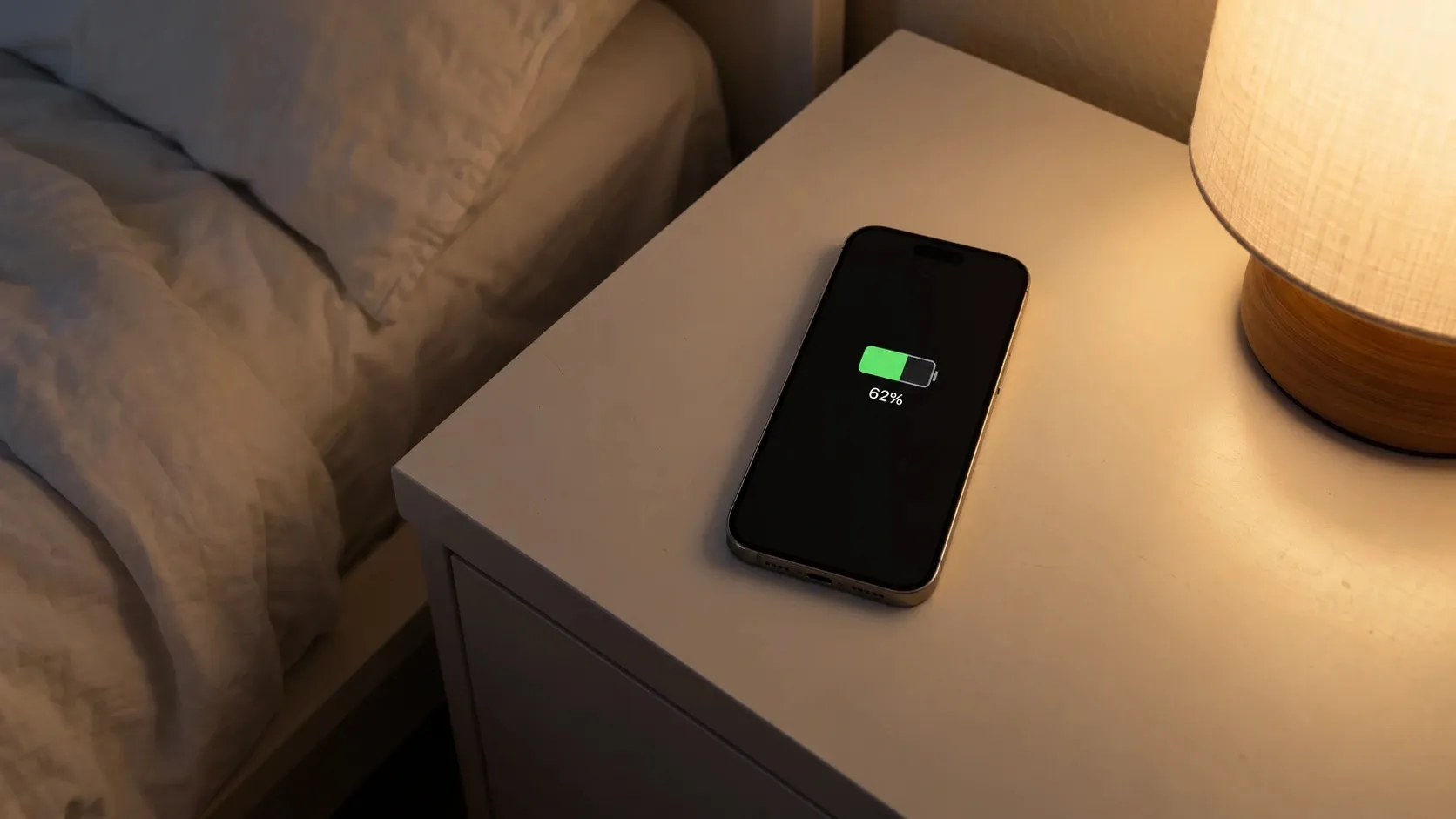
If your iPhone loses 10% or more while it sits on your nightstand, something is waking it up. Open Settings > Battery in the morning: the usage list tells you which app or system task did it, and the fix almost always follows from that.
Most overnight drain comes down to five things: one misbehaving app, bad cellular signal, notifications lighting the screen, background refresh, or an iOS update still finishing up. Here’s how to check each one. The menu names below are from iOS 27.0.1.
1. Find out what actually drained it
Don’t start toggling things at random. Your iPhone already knows the answer.
- Open Settings > Battery.
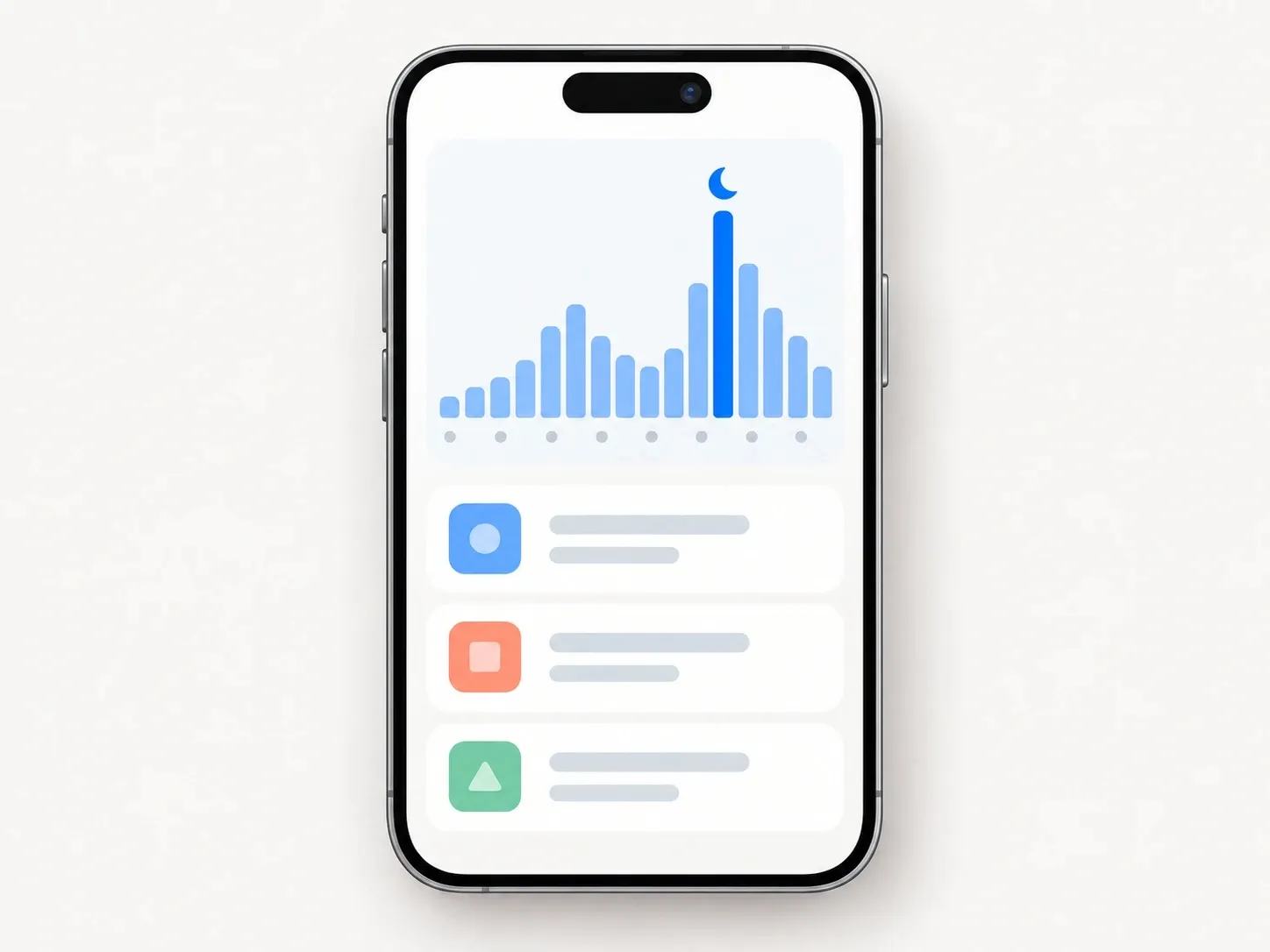
- Look at the Daily Usage chart. It compares today with your last seven days, so a bad night stands out.
- Under the chart, App and System Activity Usage lists the top three apps for today.
- For more detail, tap View All Battery Usage, then tap the day you want.
Now read the small label under each app. That label is the clue:
- Background Activity: the app was working while you weren’t using it (syncing, tracking location, playing audio).
- Notifications: the app’s notifications kept waking the screen.
- No Mobile Coverage and Low Signal: your phone spent the night hunting for a network.
- Connected to Charger: the usage happened while plugged in. Ignore it.
One app with “Background Activity” at the top of a night when you didn’t touch your phone? That’s your culprit. Skip to step 3.
2. Check for an “Ongoing iOS Update” insight
Just updated to iOS 27? Look at the top of the Battery screen. If you see Ongoing iOS Update or Ongoing Device Setup, the drain is your iPhone finishing work in the background (photo analysis, search indexing, that kind of thing).
This is temporary. Leave the phone on Wi-Fi and plugged in overnight for a few nights and it sorts itself out. Changing settings won’t speed it up.
3. Limit Background App Refresh
Background App Refresh lets apps fetch new content while you’re not using them. Handy for some apps. Pointless for most.
- Go to Settings > General > Background App Refresh.
- Turn it off for any app you don’t need fresh the second you open it. Games, shopping apps and most social apps are the usual suspects.
- Keep it on for things like messaging or navigation if you care about them being up to date.
If one app keeps showing up with Background Activity, also check its location access: Settings > Privacy & Security > Location Services, tap the app, and pick While Using the App instead of Always.
4. Fix bad signal in your bedroom
This one gets overlooked. When cellular signal is weak, your iPhone keeps boosting its radio to stay connected, all night long. If you saw “No Mobile Coverage and Low Signal” in step 1, this is it.
- Make sure Wi-Fi is on and connected at home. It uses less power than cellular.
- If your bedroom is a dead zone, turn on Airplane Mode at night, then turn Wi-Fi back on from Control Center. You keep Wi-Fi calling and iMessage, and the cellular radio gets to rest.
5. Stop notifications from lighting up the screen
Every notification turns the screen on. Twenty group-chat messages at 2 a.m. means twenty screen wake-ups.
The cleanest fix is the Sleep Focus:
- Go to Settings > Focus > Sleep.
- Under Allow Notifications, keep only the people and apps you’d want to wake you.
- Set a schedule, or link it to your bedtime in the Health app.
On iPhones with an Always-On display (14 Pro and later), Sleep Focus also turns the Always-On display off while it’s active. That alone can make a visible difference on the morning graph.
6. Look at your battery health
If none of the above explains it, the battery may simply be worn.
- Open Settings > Battery > Battery Health. On iPhone 14 and older, it’s Battery Health & Charging.
- Check Maximum Capacity.
Apple designs iPhone batteries to keep 80% of their original capacity after 500 full cycles (iPhone 14 and older) or 1,000 cycles (iPhone 15 and later). Below that, or if the screen says Service, the battery drains faster at all times, night included. A battery replacement is the real fix there, not a setting.
What doesn’t help
- Force-closing apps. iOS already suspends them. Relaunching from scratch costs more.
- Turning on Low Power Mode overnight. It cuts background work, but if nothing in step 1 looked suspicious, the gain is small. It’s more useful during the day. (It also switches itself off once you charge past 80%.)
- Battery “calibration” apps. iOS doesn’t let third-party apps do anything to the battery.
- Resetting all settings as a first step. Try it last, if at all. It wipes your Wi-Fi passwords and preferences, and it rarely fixes a single app going rogue.
Still draining?
Go back to step 1 every morning for a few days and see if the same app keeps appearing. If it does, delete it and reinstall it, or check whether the developer pushed an update. If the list looks clean and the battery still drops overnight, contact Apple Support: the battery may need a diagnostic.
FAQ
How much battery should an iPhone lose overnight?
Apple doesn't publish a number. A few percent over 7–8 hours is a reasonable baseline for a phone that's just sitting there. If you regularly wake up 10% or more down, something is keeping it busy.
Does closing apps save battery overnight?
No. iOS freezes apps you're not using. Force-closing them means they have to fully relaunch later, which can cost more power, not less.
Why did my battery start draining overnight after updating to iOS 27?
After a major update, your iPhone re-indexes photos, messages and search in the background for a few days. Settings > Battery may show an "Ongoing iOS Update" insight while this happens. Give it 3–4 days on Wi-Fi and charging before you try anything else.
Should I turn on Airplane Mode at night?
Only if your bedroom has weak cellular signal. In that case it helps a lot. If your signal is fine, Wi-Fi plus Sleep Focus does most of the job and you still get calls from people you allow.
Is it the battery itself?
Possibly. Check Settings > Battery > Battery Health (Battery Health & Charging on iPhone 14 and older). If it says Service, or Maximum Capacity is well under 80%, a replacement will help more than any setting.